
This guide preserves the original software documentation. Screens and instructions may vary by version.
Matrix Grid - Advanced Object

Description
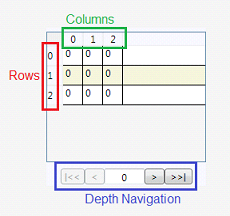
The Matrix Grid is an object created to show the values of 1, 2 or 3 dimensional Tags with ease. Once the tag is configured on the object, it will insert automatically the values of the Tag.Properties and Functions
Info
- Name
- Size
- Location
- ZIndex
- Draggable
Configuration
- Data Source
- Font
- Column Index
- Row Index
- Depth Index
- Selected Value
- Row Height
- Column Width
- Show Grid Lines
- Cell Auto Size
- Input Enable
- Is Enabled
- Is Visible
- ToolTip
Functions
- .ColumnIndex
- .RowIndex
- .DepthIndex
- .ChangeDataSource
Inserting a Matrix Grid
To create a new Matrix Grid in the Graphics Document:
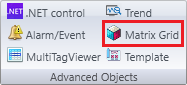
- Click the "MatrixGrid" button in the Ribbon.
- Place the mouse pointer where you want to create the MatrixGrid.
- Click to create the new MatrixGrid.
Data Source
Adds 1 or more dimensions Tag to show its values in the Matrix Grid.
To configure this property, follow the steps below:
- Click the Matrix Grid object to select it.
- On the Data Source field, type in the desired tag, or click the "..." button to open the TagBrowser window.

Input Enable
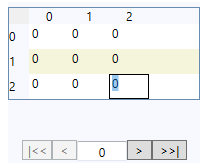
Sets the possibility to input a value directly in each cell or not.
To configure this property, follow the steps below:
- Click the Matrix Grid object to select it.
- Select/Deselect the "Input Enable" option to active/deactivate this property.

Security
It is possible to configure different permissions per profile for this object. For further information, please check the Security white paper.