

One of the things we value most at ADISRA is hearing from our customers, partners, their customers, and anyone with a curiosity about our products. Each question brings new ideas, sparks creative solutions, and helps us identify opportunities to further improve our documentation and web content.
Over time, we have observed that many of these questions are shared by others across the ADISRA community. Whether the topic involves alarm management, templates, scripting, dashboards, or trend configuration, other users are likely exploring similar challenges.
In the past, we have published several Q&A blogs, and we have been encouraged by the number of questions customers continue to send us. It is clear that many readers find this format helpful, so we created the “Dear ADISRA” Q&A series to make it easier to share answers and insights with the broader community.
We encourage you to keep the questions coming. We look forward to hearing from you (info@adisra.com).
In this edition, we will look at the following question:
Is it possible to configure the alarm screen button to blink red when a new alarm occurs, and then stop blinking once the alarm screen opens? The goal is to clearly notify the SCADA operator that a new alarm has been generated.
ADISRA provides a sample application for ADISRA SmartView version 4.1.5.1 that demonstrates this functionality. The application uses a Service that checks the number of active, normalized, and acknowledged alarms every second. This means the example not only detects newly activated alarms, but also monitors alarms that have been normalized or acknowledged, ensuring the operator is notified whenever the alarm state changes.
When the Alarm screen is opened, the application reads and stores the “last visualized” alarm values. While the Alarm screen is closed, these “last visualized” tags are not updated, while the tags monitored by the Service continue to update continuously.
By comparing these values, the system can detect differences between the current alarm states and the last visualized values, which triggers the blinking alarm notification to alert the operator that something has changed in the alarm system.
Below is a short video demonstrating how the application works.
In this application:
- We created 10 tags to simulate alarms within the system.
- The application includes two screens. The main screen displays the alert notification for new alarms, while the second screen contains the Alarm Object.
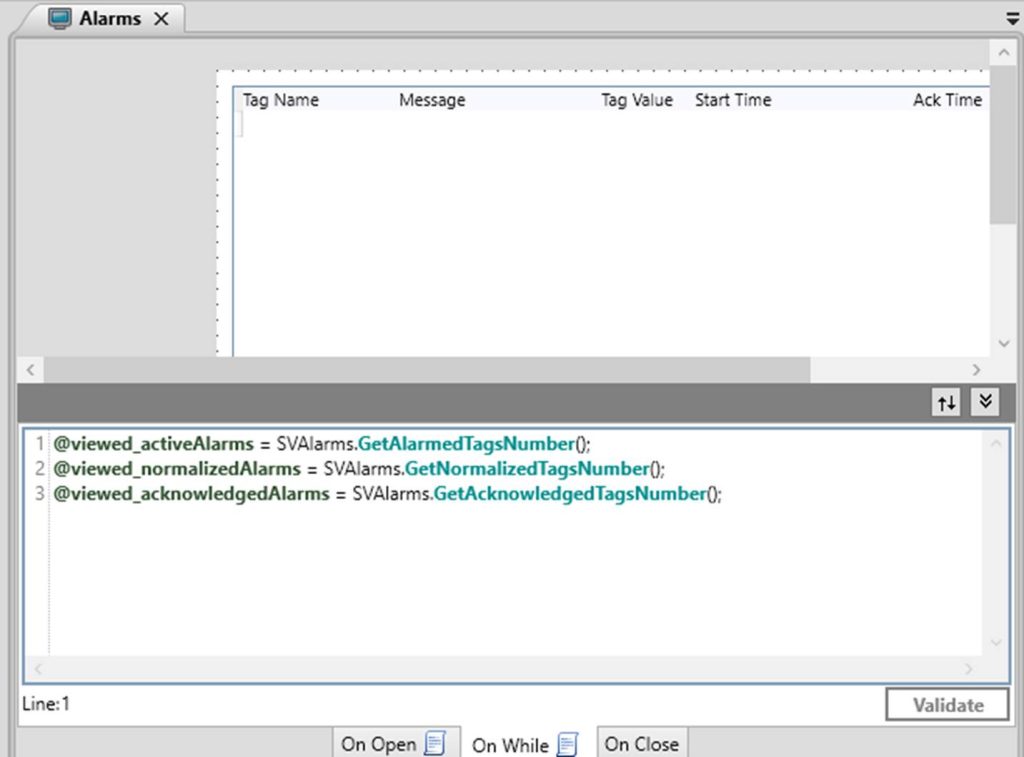
The image below illustrates the scripts implemented in the On Open and On While events to retrieve the current active alarm information. To accomplish this, we used the SVAlarms system function.
The purpose of this approach is to capture and store the current alarm values while the Alarm screen is open. When the Alarm screen is closed, the application stops updating these stored values. This allows the system to compare the stored values with the continuously updated alarm data and determine whether any alarm state changed while the screen was closed.
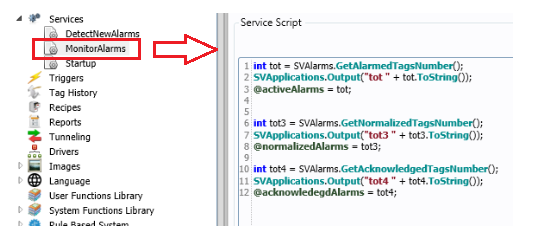
We created a service called “MonitorAlarms” that uses the same system functions described above. The values returned by these functions are written to a separate set of tags, allowing the system to continuously monitor and compare changes in alarm status.
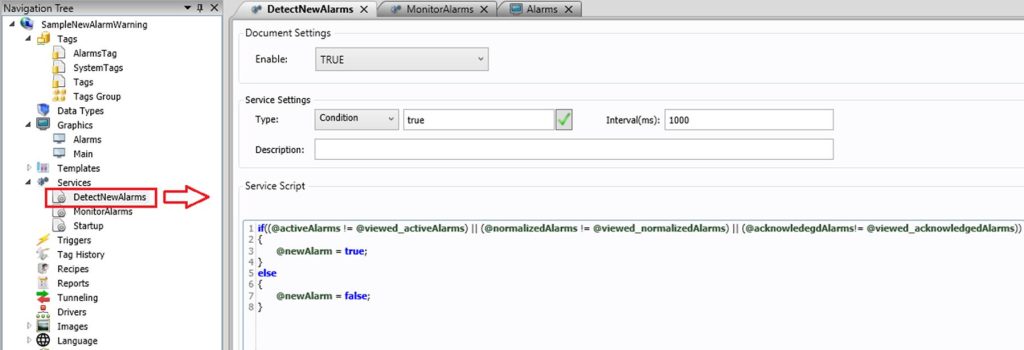
The second service, “DetectNewAlarms,” compares the two groups of tags, those updated through the OnWhile script and those updated by the MonitorAlarms service, to identify any differences. This comparison allows the application to detect when new alarms or changes in alarm state occur.
The Example of Alarm Indicator blinks sample application is available here.
How can users filter, sort, and dynamically adjust the display of alarms in ADISRA SmartView? For example, can operators sort alarms by priority or date, configure relative or absolute time ranges for alarm history, apply column-based filters, and use tags to control the displayed alarm range dynamically?
ADISRA SmartView provides flexible filtering capabilities to help users focus on the most relevant alarm and event information. The Filter function allows users to control which rows are displayed in the Alarm/Event or MultiTagViewer objects by specifying property values. By applying these filters, users can refine the displayed data to highlight specific alarm conditions, events, or operational states, making it easier for operators to quickly identify and respond to important system information.
The Alarm Object also includes several built-in filtering and organization features. For example, users can easily sort alarms by priority or date, helping operators quickly identify the most critical or most recent alarms.
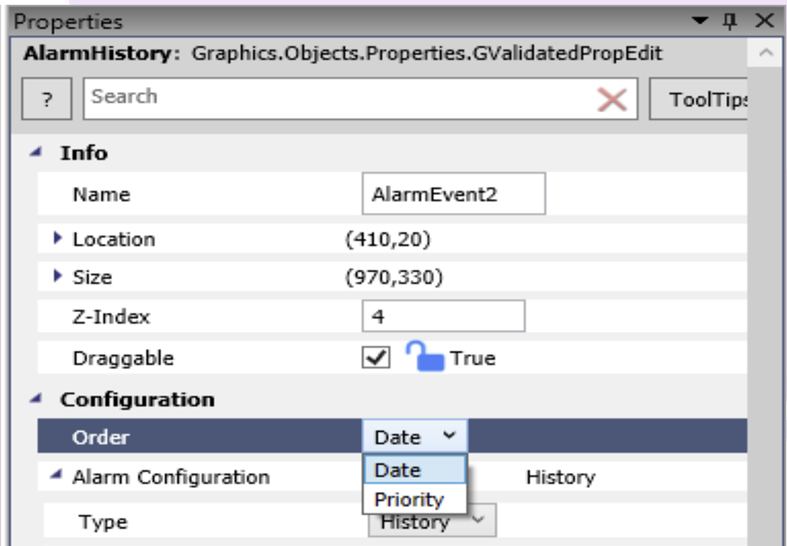
There is also an option to configure the alarm history range using either relative or absolute time settings. Additionally, users can add tags to adjust the time range dynamically, so the displayed alarm history updates automatically based on system conditions or user-defined parameters.
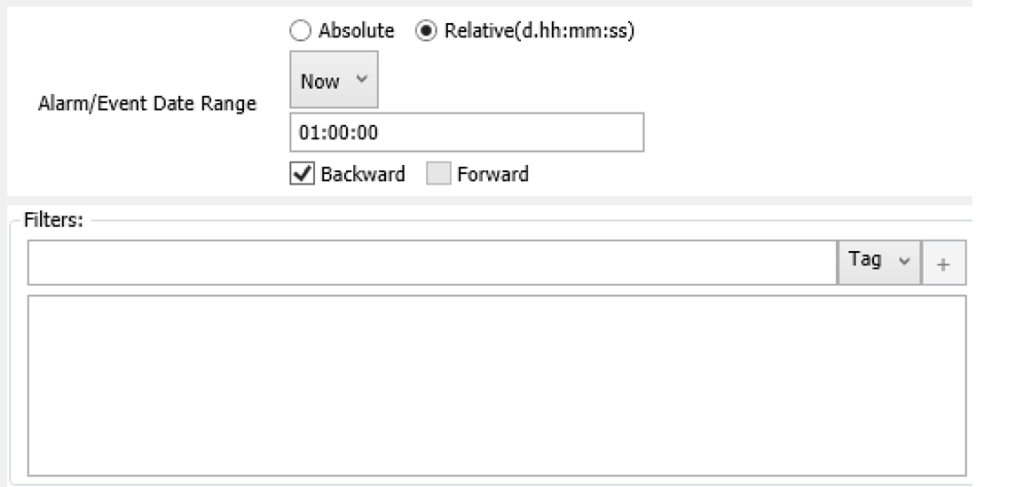

In alarm filtering, even when using an absolute filter, you can place an @ symbol in front of the date to indicate that the value should be treated as an expression rather than a fixed date.
When @TagName is used, it tells the system to reference the current value of that tag dynamically. Instead of treating the entry as static text or a constant value, ADISRA SmartView evaluates the tag at runtime and applies its current value. This approach allows filters and configurations to adapt automatically as the tag values change.

You can also apply filters by specifying the values you want to display within a particular column, allowing the alarm list to be refined based on selected criteria.
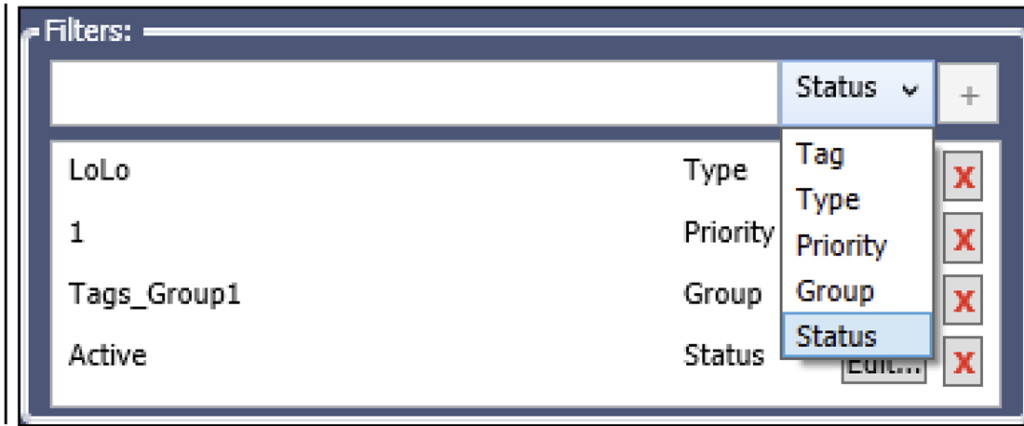
An Alarm & Event History demo illustrating how to apply alarm filtering is available here.
How can ADISRA SmartView templates be used to organize displays and dynamically present different system states or equipment information?
ADISRA SmartView provides a flexible approach to visualization through predefined display templates and the ability to create custom templates tailored to each project’s needs. This allows engineers to design applications that are both structured and scalable.
For example, when organizing a facility such as a multi-floor building, users can create independent screens that are easily accessed through navigation buttons (e.g., Floor 2, Floor 3, Floor 4). This approach helps organize indicators and operational information clearly and intuitively.
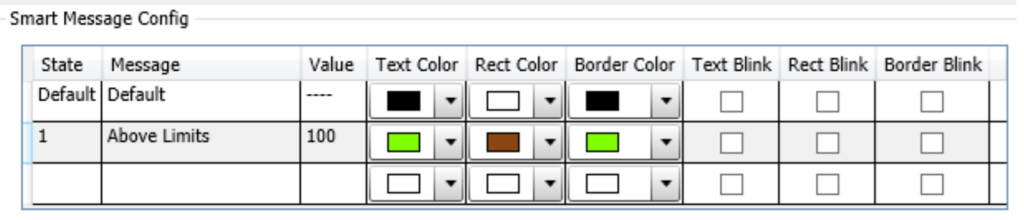
When the goal is to visualize different system states based on variable values, ADISRA SmartView provides tools such as the SmartMessage object. This object allows multiple states to be associated with a single tag, enabling users to define:
– Specific text messages
– Text colors
– Background colors
– Visual animations (such as blinking)
– Distinct visual styles for each condition
In addition, ADISRA SmartView supports both Template Objects and Screen Templates.
A Template Object is a reusable component that can be placed multiple times on the same screen. These objects support indirect object tags, allowing each instance to operate with different tags while maintaining the same design and logic.
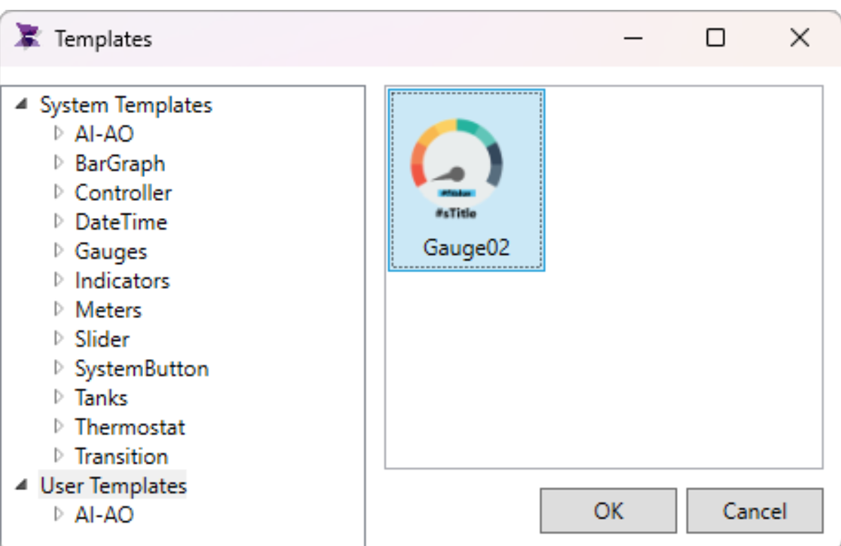
For more information about Template Objects, please watch the following video.

A Screen Template, on the other hand, functions as a generic screen that can be dynamically opened with different parameters. By using indirect screen tags, the same screen structure can display information for different devices, equipment, or contexts.
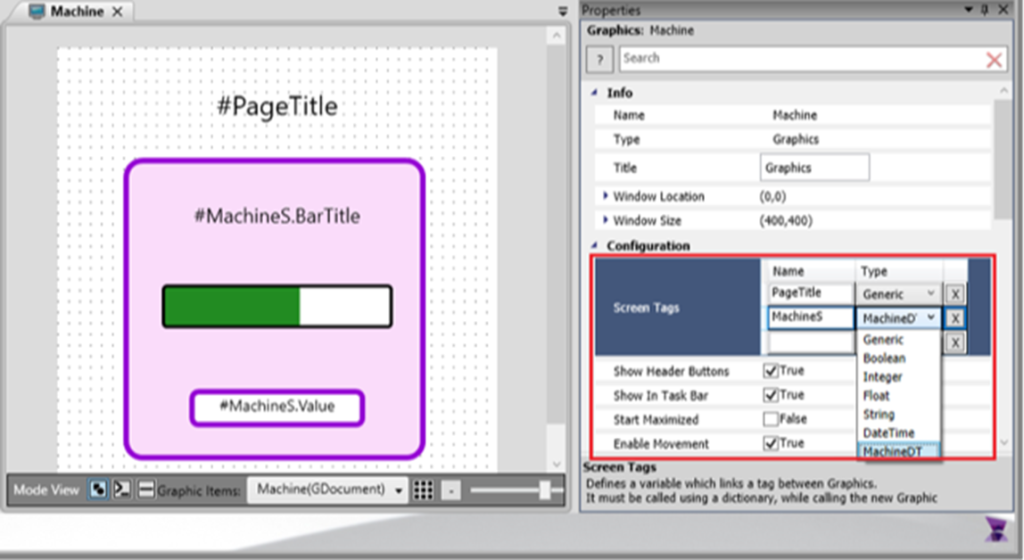
For more information on Screen Templates, please refer to the following whitepaper.
This template-based architecture enables developers to build more scalable, organized, and easier-to-maintain HMI/SCADA applications, while significantly reducing engineering time and improving consistency across the project.
If you are interested in learning more about templates, we offer a blog on the topic here, as well as a one-hour webinar that explores both Template Objects and Screen Templates in greater detail, available here.
How can ADISRA SmartView save and restore trend configurations, including pen settings and scale ranges, so operators can maintain their preferred visualization settings?
ADISRA SmartView provides flexible scripting capabilities that allow users to save and restore trend configurations, ensuring that operator preferences remain consistent across sessions.
In the example shown above, the application demonstrates how trend pen configurations are automatically saved and reloaded as changes are made. This includes adjustments such as pen thickness, color, and scale settings. Additionally, the application includes an option to modify the minimum and maximum scale values for two float-tag pens, which are also stored in the configuration.
a) SaveConfig
The SaveConfig button executes a script that captures both the manual changes made directly in the trend object (such as pen color and thickness) and the minimum and maximum scale values defined for the two float pens.
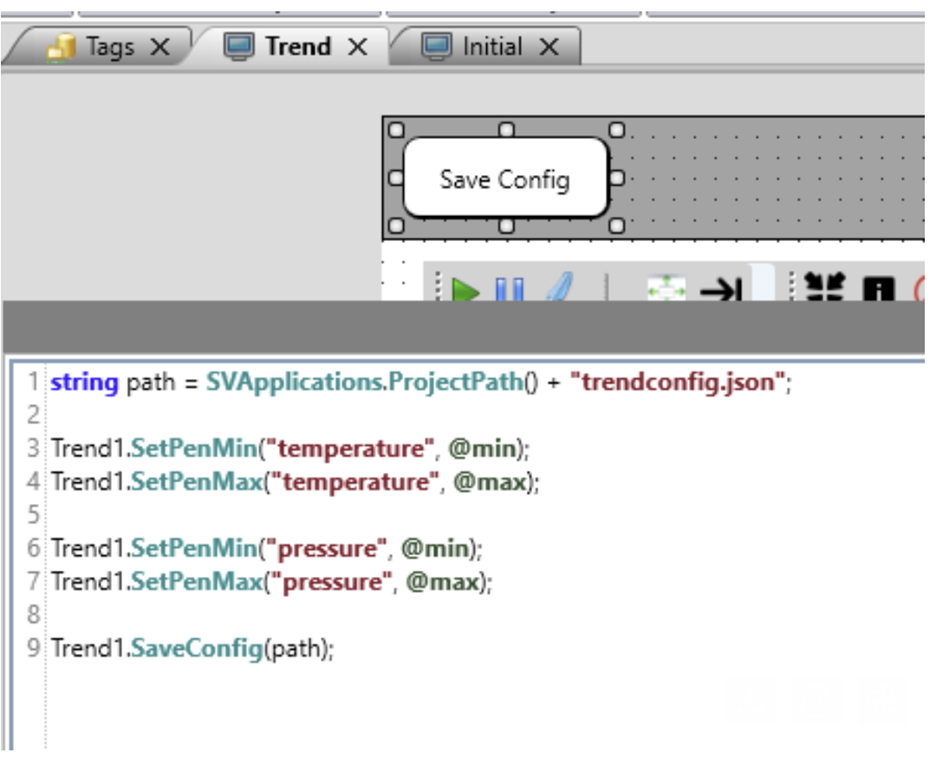
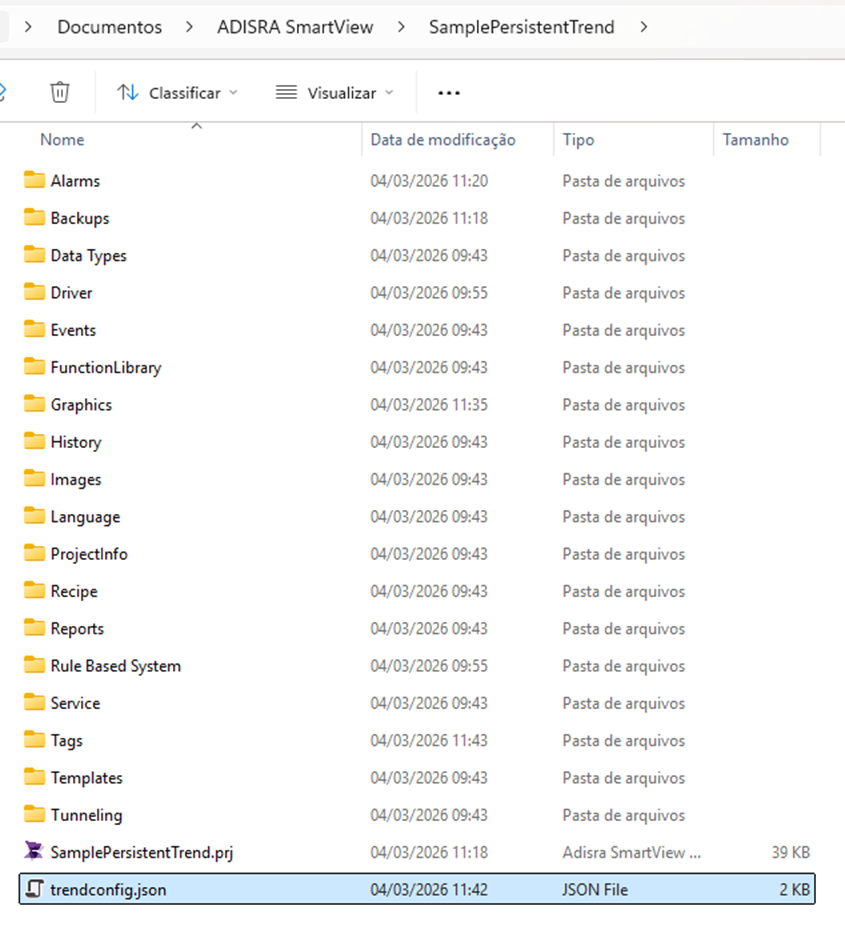
All of this information is stored in a configuration file named trendconfig.json, located in the Application folder. This approach ensures that all visualization preferences are preserved for future use.
b) LoadConfig
When the page loads, the application checks whether the trendconfig.json file exists. If the file is found, the configuration is automatically loaded, restoring the previously saved pen settings and scale values.
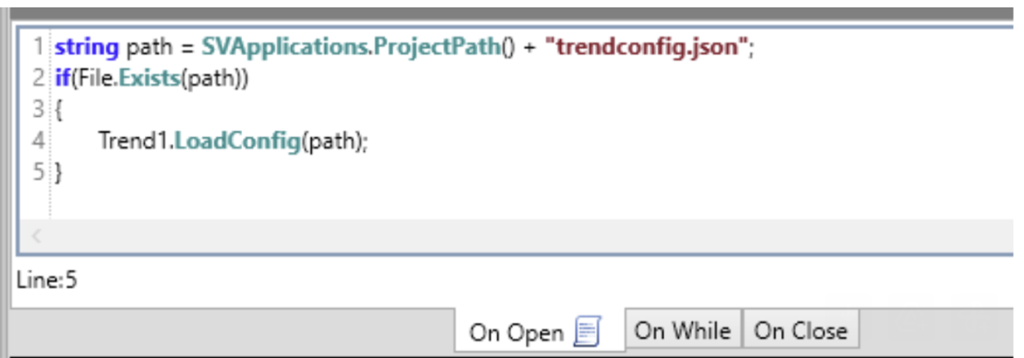
The JSON file is saved in the Application folder.
This file stores all configuration settings, including pen properties such as thickness, marker style, and color, as well as minimum and maximum values and other related parameters.
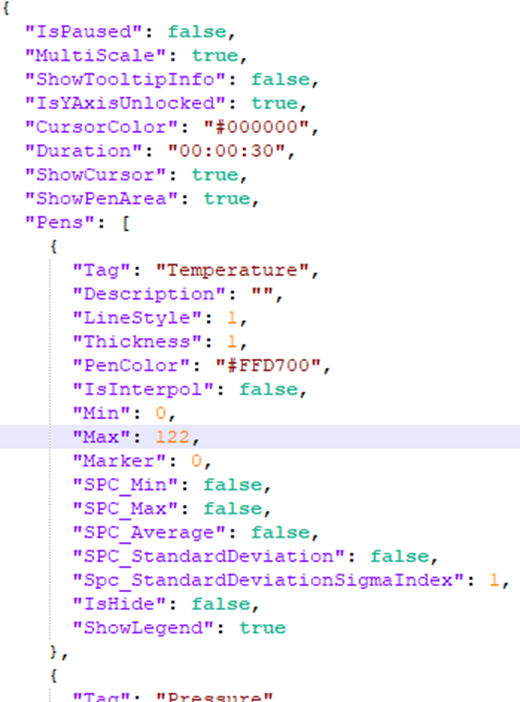
This method allows operators to return to the same trend visualization settings each time the application is opened, improving usability and maintaining consistency in data analysis.
To download this example, see the Example Features section under the title “Save and Load Trend Configuration,” available here.
Conclusion
This concludes our first Dear ADISRA blog, and we hope you found it informative and helpful.
If you have a question you would like us to address in a future Dear ADISRA post, please send it to info@adisra.com. Your question may be featured in one of our upcoming blogs.
If you have not yet downloaded the latest release of ADISRA SmartView V4.1.5.1, you can do so here. If you are new to ADISRA SmartView and would like to see it in action, we would be happy to schedule a private demonstration. Please request one here.
Finally, we invite you to join us for our upcoming webinar on developing ADISRA SmartView applications for Linux. Additional information and registration details are provided below.

Please join us for our webinar entitled:
ADISRA SmartView on Linux: Flexible HMI/SCADA for Modern Industrial Systems
In a world increasingly shaped by proprietary ecosystems and large technology platforms, Linux continues to quietly grow as a powerful alternative. While Windows still dominates the desktop market with approximately 73.72% global market share, Linux is rapidly expanding across industrial systems and edge computing.
According to Research and Markets, the Linux operating system market is expected to reach $18.73 billion by 2029. In industrial automation, adoption is already accelerating. SQ Magazine reports that Linux-based PLCs represent 33.1% of newly deployed systems, and 71.9% of edge AI inference workloads run on Linux.
These trends make one thing clear: Linux is becoming a critical platform for modern industrial automation.
Join us for this upcoming webinar where we will demonstrate how to build scalable and robust HMI/SCADA applications using ADISRA SmartView on Linux.
During the session, we will cover:
– Design considerations for Linux deployments.
– Connectivity & Integration – bridging PLCs and databases.
– Security & Maintenance best practices for Linux environments
– Remote Management of your ADISRA SmartView application.
– Edge AI Integration – running an AI expert system using built in rule-based system for predictive maintenance
If Linux is part of your automation strategy, or will be soon, this webinar will show you how ADISRA SmartView enables industrial applications on the Linux platform.
Join us on 26 March 2026, at
7:30 am PDT
9:30 am CDT (Austin, Texas) 10:30 am COT & EDT 2:30 p.m. UTC (Coordinated Universal Time)
3:30 pm CET
4:30 pm EET & SAST
9:30 pm WIB
10:30 pm – SGT
Register for the webinar here.
ADISRA®, ADISRA’S logo, InsightView®, and KnowledgeView® are registered trademarks of ADISRA, LLC.
© 2026 ADISRA, LLC. All Rights Reserved.